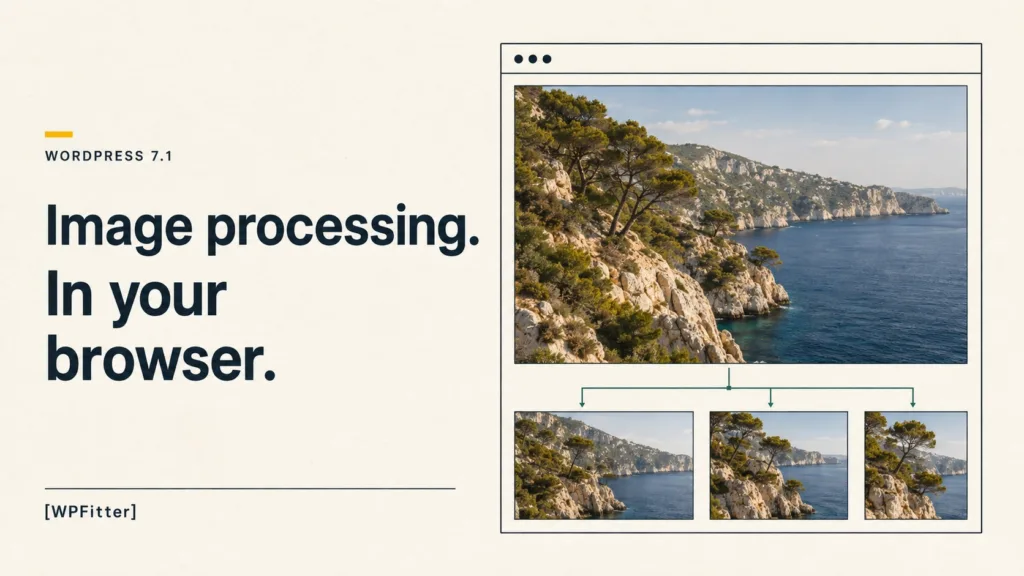
Uploading a large image to WordPress has always asked a lot from the server. WordPress must resize it, rotate it, compress it, and make every thumbnail. On a small hosting plan, that can end with a timeout or a PHP memory error. WordPress 7.1 changes that process. On supported devices, much of the image work now happens in your browser before the files reach the server. This is called client-side media processing. It is on by default, and most users will not need to configure it.
How client-side media processing works in WordPress
The block editor can now use a WebAssembly version of libvips, called wasm-vips. In plain English, WordPress loads an image tool in the browser and uses your computer to do the heavy work. It can:
- resize large images;
- create WordPress thumbnail sizes;
- rotate images from camera data;
- compress JPEG, PNG, WebP, and AVIF files;
- change an image to another format when a filter asks for it;
- turn HEIC and HEIF photos into JPEG files; and
- make a small video companion for a supported animated GIF.
The server still creates the attachment record and stores the files. It just receives images that have already been processed. That matters for two reasons.
First, the work no longer depends on the server’s PHP memory limit. A large phone photo is much less likely to fail on cheap or busy hosting. Second, wasm-vips gives WordPress a consistent image engine. Results should not change because one host uses GD and another uses a different ImageMagick build.
There is also less CPU work on the server. JPEG compression can be better than the old server path. Uploaders get useful HEIC support, and an opaque animated GIF can gain a much smaller MP4 or WebM version for playback.
Will it work in every browser?
Not yet. The full pipeline needs Chrome 137 or newer, or Edge 137 or newer. The device also needs more than 2 GB of memory, at least two CPU cores, and a reasonable network connection. Data Saver and very slow connections disable it. The worker is downloaded only when needed and is about 13 MB.
Firefox and Safari do not run the full WebAssembly pipeline today. Safari can still use a separate browser path for HEIC conversion. When client-side media processing is unavailable, WordPress quietly sends the original file to the server and uses the old process. The upload should still work.
The main WebAssembly path accepts JPEG, PNG, GIF, WebP, and AVIF. HEIC and HEIF use the special conversion path.
Sites with a strict Content Security Policy must allow blob: in worker-src. The editor also needs cross-origin isolation. WordPress sets the required document policy on normal editor screens, but a page builder or a custom admin screen can prevent that. You can check the active editor in the browser console:
window.crossOriginIsolatedIf it returns false, WordPress uses the server fallback.
How to turn it off
Add this to a small site plugin or your theme’s functions.php file:
add_filter(
	'wp_client_side_media_processing_enabled',
	'__return_false'
);
You can also disable it only for some users. This example keeps it on for administrators and sends everyone else through the server path:
add_filter(
	'wp_client_side_media_processing_enabled',
	function ( $enabled ) {
		return current_user_can( 'manage_options' )
			? $enabled
			: false;
	}
);
I would not disable it without a clear reason. A plugin conflict or a custom upload workflow is a good reason. Browser preference alone is not, because core already has a fallback.
Useful controls still work
WordPress uses its existing image filters for both the browser and server paths. To resize large uploads to 1920 pixels instead of the default 2560 pixels:
add_filter( 'big_image_size_threshold', function () {
	return 1920;
} );
To create WebP files from JPEG uploads:
add_filter( 'image_editor_output_format', function ( $formats ) {
	$formats['image/jpeg'] = 'image/webp';
	return $formats;
} );
Quality, progressive JPEG, metadata removal, and bit-depth filters are also respected.
Client-side media processing test: core versus image plugins
I tested WordPress 7.1 in Chrome 152 on a local Mac. The WebAssembly worker was warm before timing. Each setup used the same four files: a 2.24 MiB, 5000-pixel JPEG; a 1.42 MiB PNG graphic; a 978 KiB animated GIF; and a 702 KiB HEIC photo. Each plugin ran on its own. The figures below are the main attachment files, not every thumbnail and preserved original.
| Setup | JPEG result | PNG result | HEIC result | Four-file upload |
|---|---|---|---|---|
| WordPress 7.1 only | 469 KiB JPEG | 1.42 MiB PNG | 475 KiB JPEG | 1.5 s; repeat 4.3 s |
| Modern Image Formats 2.7.1 | 342 KiB WebP | 17 KiB WebP | 332 KiB WebP* | 13.0 s |
| EWWW Image Optimizer 8.7.7 | 411 KiB JPEG | 1.24 MiB PNG | 416 KiB JPEG | 4.6 s, then background work |
The 332 KiB number is only the WebP file WordPress chose as the primary version of the uploaded HEIC photo. It does not include the extra files created during the same upload. Modern Image Formats also produced two copies of every HEIC-based thumbnail and two scaled WebP copies, so the total storage used was much higher than 332 KiB.
The photo results looked the same at normal viewing size. Modern Image Formats made the smallest main files because it changed JPEG and PNG uploads to WebP. EWWW used its free local, lossless tools. Its editor upload finished quickly, while background jobs continued for about 40 seconds.
The full storage result tells a different story. Core created 31 files using 9.16 MiB. Modern created 51 files using 12.13 MiB because it kept originals and duplicated the HEIC set. EWWW created 29 files using 5.90 MiB. Its thumbnails kept their original JPEG or PNG format. Modern’s thumbnails were WebP. All looked clean at normal viewing size.
Core kept the animated GIF at 978 KiB and added a 100 KiB MP4 plus a poster image. That is a useful win because the original remains available while the video is far cheaper to play.
This HEIC duplication is a serious compatibility issue. I reproduced it with a second test using a single HEIC file. It may change in a later release, but I would test HEIC uploads before using version 2.7.1 with WordPress 7.1.
Do you still need an image optimization plugin?
For many sites, native client-side media processing is enough. It is a strong default if your main problem is failed large uploads, slow thumbnail creation, HEIC photos, or heavy GIFs. It is fast, has no account or quota, and falls back safely.
A plugin still makes sense when you need automatic WebP or AVIF delivery, bulk work on the existing media library, cloud compression, backups, a CDN, or more control over quality and format rules. Those features go beyond the new core pipeline.
The main action before upgrading is simple: test your media plugins on WordPress 7.1. Core finalizes attachment metadata after the browser uploads the generated sizes, and some media hooks can run twice. Plugin code must be safe when that happens.
For the full technical details, see the official client-side media processing guide and the architecture overview.
My view is that this is one of those core changes that users should barely notice. Uploads should simply fail less often. That is exactly the right kind of improvement.