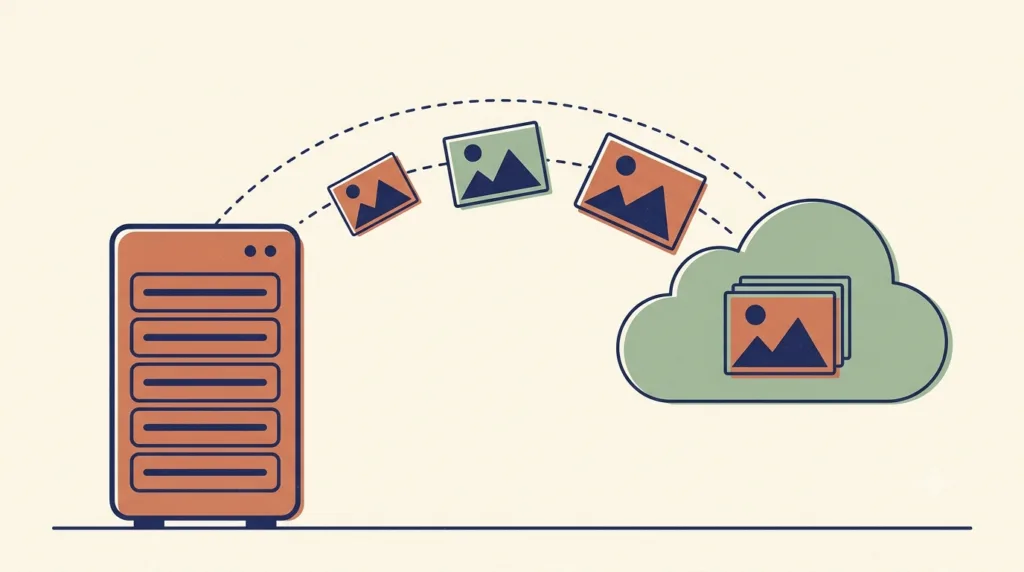
Media offloading in WordPress means moving your media files (images, videos, PDFs, and other uploads) from your web server to cloud storage. Your pages still show the same files. They just load from the cloud instead of your server.
Almost every WordPress site gets heavier over time, and the media library is usually the reason. Files pile up, disk space runs out, and backups get slow.
This guide explains how media offloading works, what you gain, what the real risks are, and how to set it up safely. The language is simple, so anyone can follow it.
What Is Media Offloading in WordPress?
When you upload a file to WordPress, it is saved in the uploads folder on your server. WordPress also creates several extra image sizes and thumbnails. One photo can easily become six or seven files.
Media offloading in WordPress copies those files to a cloud storage service, such as:
- Amazon S3
- Cloudflare R2
- Backblaze B2
- Wasabi
- DigitalOcean Spaces
- MinIO and other S3-compatible services
An offload plugin then rewrites your media links, so visitors get the files from the cloud (or from a CDN) instead of your server. Your posts and pages do not change at all.
Think of your website as a small shop. Instead of keeping every product in the tiny back room (your server), you keep them in a big warehouse (the cloud). Customers still get their order. It simply ships from the warehouse.
Why Media Offloading in WordPress Matters
Here are the main problems it fixes:
| Problem without offloading | What offloading does |
|---|---|
| Server storage fills up fast | Frees space on your server |
| The site gets slower as media grows | Takes media traffic off your server |
| Hosting costs keep rising | Cloud storage costs far less per GB |
| The site struggles during traffic spikes | Cloud storage handles big traffic easily |
| Backups and staging copies are huge | Backups and staging sites stay light |
How Media Offloading Helps SEO
Faster pages rank better. Google looks at Core Web Vitals, which measure real user experience. When your big images come from cloud storage or a CDN close to the visitor, your Largest Contentful Paint (LCP) usually improves. Your server also has more power left to send HTML quickly, and that helps every page on the site.
How Media Offloading in WordPress Works
Here is the process, step by step:
- You upload an image or file to WordPress as usual.
- The plugin sends a copy of that file, and all of its thumbnail sizes, to your cloud bucket.
- The plugin saves a note that the file now lives in the cloud, and rewrites the file links on your site.
- A visitor opens your page, and the image loads from the cloud or your CDN.
- You decide what happens to the local copy: keep it, keep only the original as a backup, or delete it to save space.
Most modern plugins support “S3-compatible” storage. That means one plugin can work with many providers, because they all speak the same language (the S3 API).
Benefits of Media Offloading
Here is what media offloading in WordPress gives you:
- More free disk space. Media is usually the largest part of a WordPress install, so the saving is big.
- A faster website, because your server no longer sends every image itself.
- Lower hosting bills, since you stop paying for expensive server storage.
- Better Core Web Vitals, especially LCP on image-heavy pages.
- More stability during traffic spikes and viral posts.
- Light backups and staging sites, which are quicker to create and restore.
Risks and Things to Watch
Nothing is perfect. These are the real downsides:
- You depend on another service. If your cloud provider has an outage, your images may not load.
- Setup needs care. You have to create a bucket, set public access correctly, and keep your API keys safe.
- Some older plugins or themes expect files to sit on the local server and may need a check.
- You must watch cloud costs, especially bandwidth (egress) fees on Amazon S3.
- If you delete files from the bucket by mistake, getting them back can be hard.
The good news: a backup, a staging test, and a careful setup remove almost all of this risk.
Best Cloud Storage Options
| Service | Best for | Main advantage | Cost note |
|---|---|---|---|
| Cloudflare R2 | Most websites | No egress (download) fees | Great value for busy sites |
| Backblaze B2 | Large media libraries | Very low storage price | Low download costs |
| Wasabi | Heavy storage needs | Simple, flat pricing | Watch the minimum charges |
| Amazon S3 | Large or enterprise sites | Very reliable and mature | Download costs can add up |
| DigitalOcean Spaces | DigitalOcean users | Easy to set up | Good middle option |
Tip: Cloudflare R2 is a popular first choice because you do not pay for data leaving the storage. If you want real numbers, see our cloud storage pricing comparison for WordPress media.
How to Set Up Media Offloading in WordPress
You do not need to write code. A plugin does the work for you.
Advanced Media Offloader is a free plugin on WordPress.org, built for exactly this job. It is light, and it covers what most sites need:
- Works with Amazon S3, Cloudflare R2, DigitalOcean Spaces, Backblaze B2, Wasabi, MinIO, and other S3-compatible storage.
- Sends every new upload to the cloud automatically.
- Moves your existing library in bulk, from the admin or with WP-CLI.
- Rewrites all media URLs, including every thumbnail size and srcset.
- Gives you retention policies: keep local files, clean them up smartly, or go fully cloud.
- Shows offload status in the Media Library, with buttons to offload or retry a single file.
- Extra controls such as mirror delete, a custom path prefix, and file versioning to avoid stale CDN caches.
- Works with WooCommerce, page builders like Elementor, and image optimizers such as Modern Image Formats, Imagify, and EWWW.
Other offload plugins exist too, both free and paid. Whichever one you pick, check three things: does it rewrite every image size, can it move your existing files in bulk, and do you control what happens to the local copies?
Step-by-step setup guides: Cloudflare R2, Amazon S3, and Backblaze B2.
Best Practices for Safe Media Offloading
Before you start
- Make a full backup of your files and database.
- Test the whole process on a staging site first.
- Check how much space your media library uses today, so you can measure the result.
During setup
- Put a CDN in front of your bucket. Cloudflare works very well here.
- Use a custom CDN URL or your own subdomain for cleaner image links.
- Pick a retention policy that fits you, and start with a safe one that keeps local files.
After offloading
- Only delete local files after you have checked that images load correctly.
- Compare speed before and after with PageSpeed Insights.
- Look for broken images on your home page, blog posts, and product pages.
Extra tips
- Use WP-CLI for very large libraries, because it does not time out like the browser.
- Convert your images to WebP or AVIF before or during the move, so you upload smaller files.
- Keep backups of your site and your bucket. Cloud storage is not a backup by itself.
When Should You Offload Your Media?
Media offloading is a good idea if:
- Your media library is bigger than a few gigabytes and keeps growing.
- You run a news site, an online store, or any image-heavy website.
- Your hosting bill is going up mainly because of storage.
- You want better Core Web Vitals scores.
- You create staging or development copies of your site often.
Want to see the effect in real life? Read how a news site cut hosting costs by 50% with Cloudflare R2.
Frequently Asked Questions
Does media offloading in WordPress break my old posts?
No. A good offload plugin rewrites the media URLs for you, so your posts, pages, and products keep working exactly as before.
Will my site really get faster?
In most cases, yes. The gain is biggest on image-heavy pages and on shared or small servers, because your server stops sending every image itself.
Can I move my files back to the server later?
Yes. If you keep local copies, nothing is lost. If you removed them, you can download the files from your bucket and put them back in the uploads folder.
Do I still need image optimization?
Yes. Offloading changes where a file is stored, not how big it is. Compress your images and use WebP or AVIF for the best results.
Is cloud storage safe for my media?
Cloud storage is very reliable, but it is not a backup. Keep your own backups of both the site and the bucket.
Final Thoughts
Media offloading in WordPress is one of the most useful technical improvements you can make on a WordPress site. It frees server space, speeds up your pages, and lowers costs, as long as you set it up with care.
Start with a backup, test on staging, pick a provider that fits your traffic, and move your files step by step. If you want a free and light way to begin, Advanced Media Offloader is a solid starting point.
Have questions about setting up media offloading on your site? Feel free to reach out. We are happy to help.