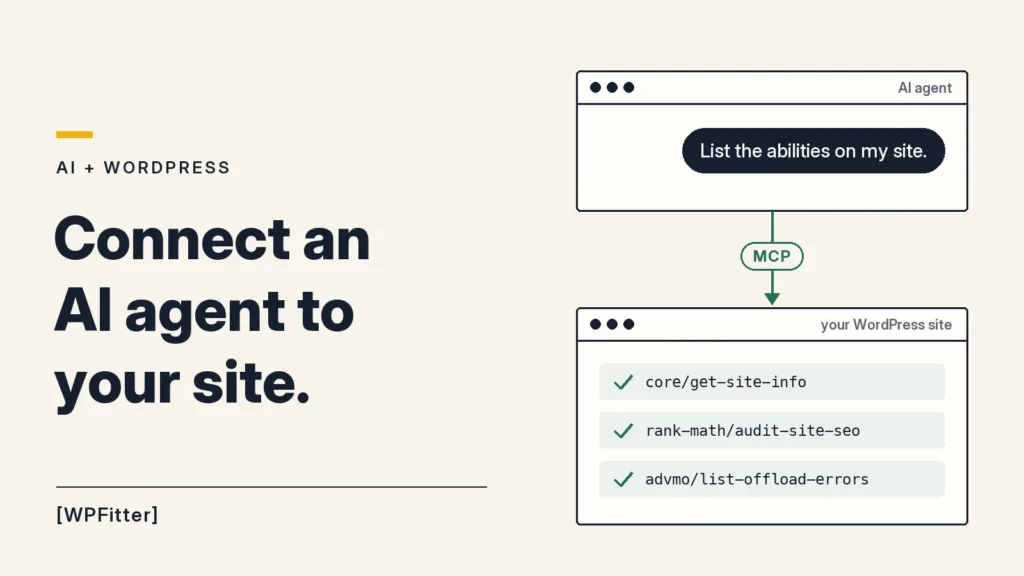
AI agents like Claude can now work with your WordPress site directly. You ask a question in a chat, and the agent checks your site for you. It can read your site details, run an SEO audit, or look for media files that failed to upload.
Setting it up takes about ten minutes. You need one free plugin, an Application Password, and an AI app that supports MCP. You’ll copy and paste a few lines, but you don’t need to write any code.
How it works
- Abilities: Since WordPress 6.9, WordPress and plugins can register abilities. An ability is one action, like “get site info” or “run an SEO audit”.
- MCP (Model Context Protocol): the open standard that AI apps use to connect to other tools.
- MCP Adapter: the official plugin that links the two. It makes your site’s abilities available to any MCP app, like Claude, Cursor, or VS Code.
The agent logs in as a WordPress user. It can only do what that user is allowed to do.
Note: MCP is not built into WordPress yet. The WordPress AI team has proposed bringing it into WordPress itself, targeting version 7.3. Until that happens, you need the plugin.
Not the same as WordPress 7.0’s AI features: WordPress 7.0 added tools that let your site use AI models, like the Connectors screen where you add AI provider keys. This guide works the other way around: an AI agent working on your site.
What you’ll need
- WordPress 6.9 or newer
- HTTPS on your site (local sites work without it if their environment type is set to
local) - An AI app that supports MCP, such as Claude Desktop, Claude Code, or Cursor
- Node.js on your computer, if you use a desktop app
Last tested in November 2026 with MCP Adapter 0.7.1 and Claude Code.
Step 1: Install the MCP Adapter plugin
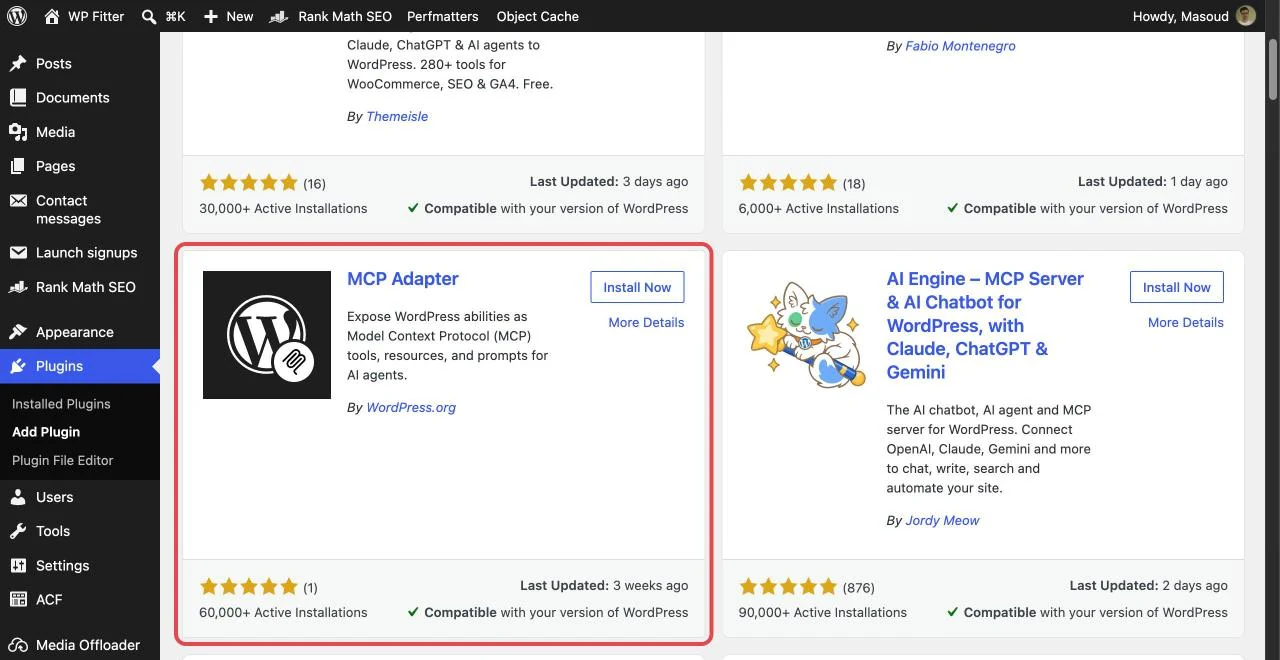
- In your WordPress dashboard, go to Plugins → Add New Plugin.
- Search for MCP Adapter.
- Find the plugin by WordPress.org. Click Install Now, then Activate.
Tip: The search shows many MCP plugins. Pick the one by WordPress.org. It is the official plugin from the WordPress project.
The plugin adds no menu and no settings page. That is normal. It adds one new address to your site, called the MCP endpoint:
https://example.com/wp-json/mcp/mcp-adapter-default-serverReplace example.com with your own domain. You will need this address in Step 3.
Step 2: Create an Application Password
An Application Password lets an app log in to your site without your real password. You can revoke it at any time.
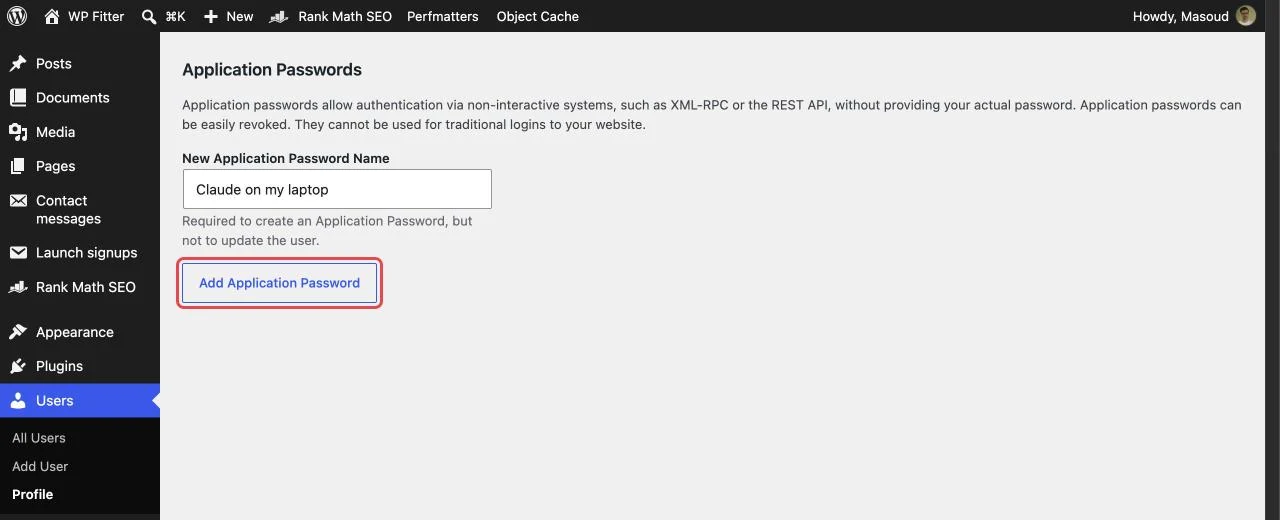
- Go to Users → Profile and scroll down to Application Passwords.
- Enter a name you will recognize later, like Claude on my laptop.
- Click Add Application Password.
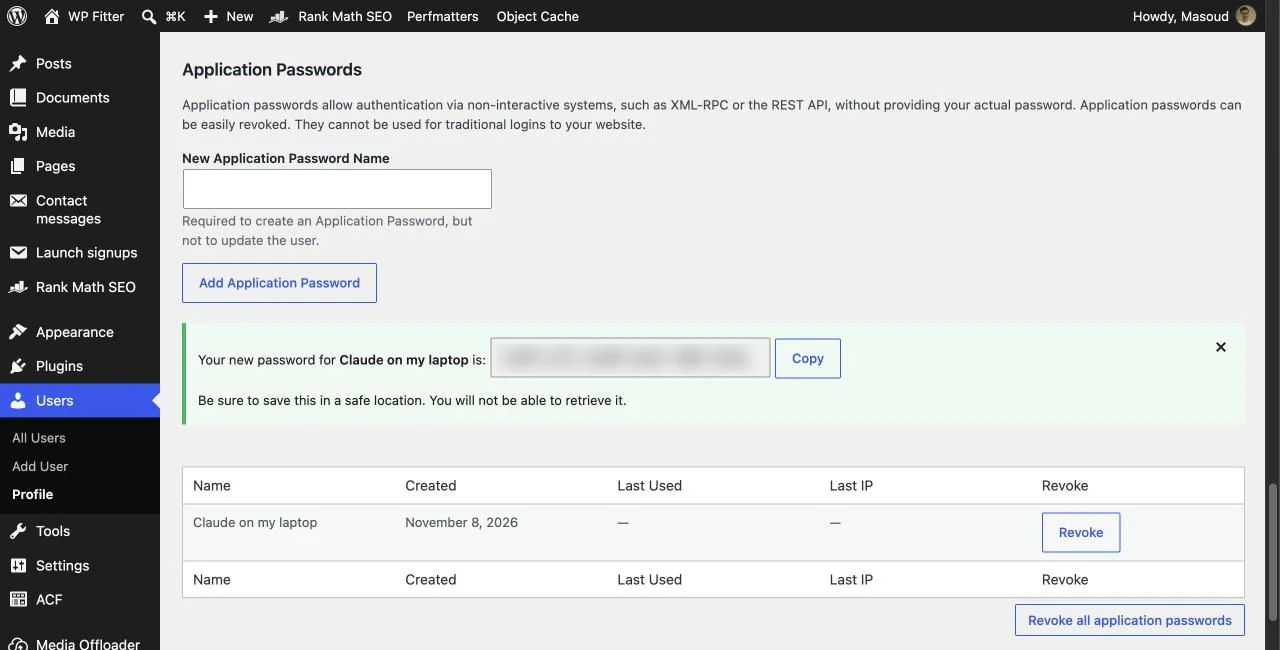
Copy the new password and keep it somewhere safe. WordPress shows it only once. You can paste it with or without the spaces. Both work.
Tip: For the safest setup, create a separate WordPress user for your agent. Give it the lowest role that can do the job. For example, an Editor is enough for content work. Some abilities, like changing settings, need an Administrator.
Step 3: Add your site to your AI app
You need three things: your MCP endpoint from Step 1, your WordPress username, and the Application Password from Step 2.
Claude Desktop, Cursor, and other desktop apps
In Claude Desktop, go to Settings → Developer → Edit Config. In Cursor, open ~/.cursor/mcp.json. Add this code with your own details:
{
  "mcpServers": {
    "my-wordpress-site": {
      "command": "npx",
      "args": ["-y", "@automattic/mcp-wordpress-remote@latest"],
      "env": {
        "WP_API_URL": "https://example.com/wp-json/mcp/mcp-adapter-default-server",
        "WP_API_USERNAME": "your-username",
        "WP_API_PASSWORD": "xxxx xxxx xxxx xxxx xxxx xxxx"
      }
    }
  }
}
If the file already has an mcpServers section, add only the my-wordpress-site part inside it. Save the file and restart the app. The npx command runs a small helper on your computer that passes the app’s requests to your site.
Using VS Code? It uses a slightly different format. Put the same details in .vscode/mcp.json, but use servers as the top-level key instead of mcpServers.
Claude Code
Claude Code connects to your site directly, without the helper. First, turn your username and Application Password into a login code. On macOS or Linux, run:
printf 'your-username:xxxx xxxx xxxx xxxx xxxx xxxx' | base64 | tr -d '\n'On Windows, run this in PowerShell instead:
[Convert]::ToBase64String([Text.Encoding]::UTF8.GetBytes('your-username:xxxx xxxx xxxx xxxx xxxx xxxx'))Then add your site. Paste the result after Basic:
claude mcp add --transport http --scope user my-wordpress-site \
  https://example.com/wp-json/mcp/mcp-adapter-default-server \
  --header "Authorization: Basic PASTE_THE_RESULT_HERE"
The --scope user option makes your site available in every Claude Code project. Without it, the connection only works in the folder where you ran the command. On Windows, remove the backslashes and put the whole command on one line.
Note: The web versions of Claude and ChatGPT connect through an OAuth sign-in. MCP Adapter does not include one, so use a desktop app or Claude Code. You can also add a plugin that provides an OAuth sign-in.
Step 4: Test the connection
Start a new chat in your AI app and ask:
List the WordPress abilities you can use on my site.The agent should list the abilities it found. Here is the start of the answer from our test site, using Claude Code:
I can use 41 abilities on your site. They come from 3 sources:

- WordPress core: 3
- Advanced Media Offloader (advmo): 9
- Rank Math SEO: 29
You can also confirm it in WordPress. Go back to Users → Profile. The Last Used column now shows today’s date.

Did you get an empty list? The connection still works. It means no plugin on your site has shared abilities yet. See the next section.
What can your agent do?
That depends on the abilities on your site. WordPress core includes three read-only abilities: site info, user info, and environment info (your WordPress, PHP, and database versions).
Plugins add more. On our test site, Rank Math SEO added 29 abilities, like site SEO audits and 404 reports. Advanced Media Offloader added 9 abilities for checking and offloading media files.
Try prompts like these:
- “Which WordPress and PHP versions is my site running?”
- “Run an SEO audit and show me the three most important issues.”
- “Are there any media files that failed to offload?”
Does a plugin you use not support abilities yet? Ask its developer. Support is growing fast.
Want your agent to work with something no plugin covers yet, like your own plugin, your store, or your business tools? We build custom abilities as part of our AI & API integration work.
Stay in control
- Use the lowest role that works. The agent can do anything its user can do.
- Create one password per app. Then you can revoke one without breaking the others. Click Revoke under Users → Profile to cut off an app right away.
- Ask before changes. Tell your agent to check with you before it changes anything. Many AI apps also ask you to approve each action.
- Test on staging first, and keep backups. An ability changes your live site, just like a click in wp-admin.
- Watch out for tricky content. Text in posts, comments, or form entries can try to trick an agent into doing something you didn’t ask for. This is one more reason to use a low-privilege user and approve changes yourself.
- Treat your config like a password. Your config file and the Basic login code both contain your Application Password. Don’t share them or commit them to Git.
Troubleshooting
| Problem | Fix |
|---|---|
| 401 Unauthorized | Use your login username or email, not your display name. Check that you copied the full password. If both are right, ask your host to pass the Authorization header to PHP. |
| No Application Passwords section | Your site must load over HTTPS. Some security plugins and hosts turn Application Passwords off. |
404 or rest_no_route |
Check the address for typos, and check that MCP Adapter is active. If you use plain permalinks, use https://example.com/?rest_route=/mcp/mcp-adapter-default-server. |
npx: command not found |
Install Node.js, then restart your AI app. |
| Permission error on an ability | The connected user’s role can’t do that action. Connect with a user that has the right role. |
For more details, see the official MCP Adapter guide.
Frequently Asked Questions
Is it safe to connect an AI agent to WordPress?
It’s as safe as the user account you connect. The agent can only do what that user is allowed to do, and you can revoke its Application Password at any time. Use a separate user with the lowest role that works, ask the agent to check with you before changes, and test on a staging site first.
Does it work with ChatGPT?
Not directly yet. The web versions of ChatGPT and Claude need an OAuth sign-in, and MCP Adapter doesn’t include one. Use Claude Desktop, Cursor, or Claude Code instead, or add a plugin that provides an OAuth sign-in.
Does it cost anything?
The MCP Adapter plugin and Application Passwords are free. You only pay for your AI app, if its plan isn’t free.
Will it work on shared hosting?
Usually, yes. MCP Adapter runs through the normal WordPress REST API. Some hosts block the Authorization header or turn off Application Passwords. If that happens, check the Troubleshooting table above or ask your host.
You’re connected
That’s it. Your AI agent can now work with your WordPress site. Start with simple, read-only questions. When you feel comfortable, give it bigger jobs.
Stuck on a step? Contact us. We’re happy to help. And if you want your agent to do more on your site, see how we build custom AI integrations for WordPress.